Feuerfest

Just the private blog of a Linux sysadmin

Integrating Isso into Bludit via Apache2 and WSGI

Photo by Sébastien BONNEVAL: https://www.pexels.com/photo/women-posting-notes-on-brown-board-7393948/

Isso is a comment system designed to be included in static sites. As Bludit is a static site generator and has no comment system on its own this is a perfect fit. 😀 Also the comments are stored in a local SQLite DB which means all data stays locally on this server and no external account registration is required.

Comment moderation is of course possible via a small admin backend.

Introduction

I actually tried to separate methods of setting up and integrating Isso in my Bludit instance.

The start was always a Python virtualenv as I didn't want to install all packages and libraries system-wide. After that, I tried two approaches as I wasn't sure which one I liked better.

First approach:

  • Python virtualenv
  • Isso started via Systemd Unit on localhost:8080
  • ProxyPass & ProxyPassReverse directives in the Apache vHost configuration forwarding the relevant URIs to Isso on http://localhost:8080

Second approach:

  • Python virtualenv
  • Isso integrated via mod_wsgi into Apache

In the end, I went with the second approach as it spared me a Systemd Unit and activating the mod_proxy & mod_proxy_http in Apache. Also the whole integration was done with one WSGI file and 8 lines in the vHost.

But as I got both to a working condition I document them here nonetheless.

Creating the Python virtualenv

Creating the virtualenv is a necessary step for both paths. Generally, you can omit it if you want to install the Python packages system-wide, but as I'm still testing the software I didn't want this.

Here I followed the Install from PyPi documentation from Isso.

root@admin ~# mkdir /opt/isso
root@admin ~# apt-get install python3-dev python3-virtualenv sqlite3 build-essential
# Switching back to our non-root user
root@admin ~# exit
user@admin:~$ cd /opt/isso
user@admin:/opt/isso$ virtualenv --download /opt/isso
user@admin:/opt/isso$ source /opt/isso/bin/activate
(isso) user@admin:/opt/isso$ pip install isso

# After that I ran an upgrade for isso to get the latest package
(isso) user@admin:/opt/isso$ pip install --upgrade isso

# Also we can already create an directory for the SQLite DB where the comments get stored
# Note: This MUST be writeable by the user running isso. So either the user the Systemd unit runs under, or, in my case: the Apache2 user
(isso) user@admin:/opt/isso$ mkdir /opt/isso/db

# To change the ownership I need to become root again
# I choose www-data:adm to allow myself write-access as the used non-root user is part of that group
root@admin ~# chown www-data:adm/opt/isso/db
root@admin ~# chmod 775 /opt/isso/db

With pip list we can get an overview of all installed packages and their versions.

(isso) user@admin:/opt/isso$ pip list
Package       Version
------------- -------
bleach        6.1.0
cffi          1.16.0
html5lib      1.1
isso          0.13.0
itsdangerous  2.2.0
jinja2        3.1.4
MarkupSafe    2.1.5
misaka        2.1.1
pip           20.3.4
pkg-resources 0.0.0
pycparser     2.22
setuptools    44.1.1
six           1.16.0
webencodings  0.5.1
werkzeug      3.0.3
wheel         0.34.2

Isso configuration file

My isso.cfg looked like the following. The documentation is here: https://isso-comments.de/docs/reference/server-config/

(isso) user@admin:/opt/isso$ cat isso.cfg
[general]
dbpath = /opt/isso/db/comments.db
host = https://admin.brennt.net/
max-age = 15m
log-file = /var/log/isso/isso.log
[moderation]
enabled = true
approve-if-email-previously-approved = false
purge-after = 30d
[server]
listen = http://localhost:8080/
public-endpoint = https://admin.brennt.net/isso
[guard]
enabled = true
ratelimit = 2
direct-reply = 3
reply-to-self = false
require-author = true
require-email = false
[markup]
options = strikethrough, superscript, autolink, fenced-code
[hash]
salt = Eech7co8Ohloopo9Ol6baimi
algorithm = pbkdf2
[admin]
enabled = true
password = YOUR-PASSWORD-HERE

This meant I needed to create the /var/log/isso directory and set the appropriate rights.

But I want to raise your attention towards the following line public-endpoint = https://admin.brennt.net/isso here I added /isso to the host as else we will run in problems as both Isso and Bludit are using the /admin URI for backend access.

While this can be changed in Isso when you hack the code and, as far as it could tell, also in Bludit. I didn't want to do this, as these are modifications which will always cause additional work when an update of either Isso or Bludit is done. Therefore I added the /isso URI and adapted the ReverseProxy/WSGI configuration accordingly. Then everything works out of the box.

Decide how to proceed

Now you need to decide if you want to go with the first or second approach. Depending on this either start with point 1a) Creating the Systemd unit file or 2) Apache2 + WSGI configuration

1a) Creating the Systemd unit file

The following unit file will start Isso. Store it under /etc/systemd/system/isso.service.

[Unit]
Description=Isso Comment Server

[Service]
Type=simple
User=user
WorkingDirectory=/opt/isso
ExecStart=/opt/isso/bin/isso -c /opt/isso/isso.cfg
Restart=on-failure
RestartSec=5

[Install]
WantedBy=multi-user.target

Then activate it and start the service.

root@admin /opt/isso # vi /etc/systemd/system/isso.service
root@admin /opt/isso # systemctl daemon-reload
root@admin /opt/isso # systemctl start isso.service
root@admin /opt/isso # systemctl status isso.service
● isso.service - Isso Comment Server
     Loaded: loaded (/etc/systemd/system/isso.service; enabled; vendor preset: enabled)
     Active: active (running) since Wed 2024-07-24 23:19:48 CEST; 1s ago
   Main PID: 1272753 (isso)
      Tasks: 2 (limit: 9489)
     Memory: 24.1M
        CPU: 191ms
     CGroup: /system.slice/isso.service
             └─1272753 /opt/isso/bin/python /opt/isso/bin/isso -c /opt/isso/isso.cfg

Jul 24 23:19:48 admin systemd[1]: Started Isso Comment Server.
Jul 24 23:19:48 admin isso[1272753]: 2024-07-24 23:19:48,475 INFO: Using configuration file '/opt/isso/isso.cfg'

The logfile should now also have an entry that the service is started:

root@admin /opt/isso # cat /var/log/isso/isso.log
Using database at '/opt/isso/db/comments.db'
connected to https://admin.brennt.net/

1b) Writing the Apache2 ReverseProxy configuration

This is the relevant part of the Apache ReverseProxy configuration.

Note: I used the ReverseProxy configuration before adding the /isso URI to the public-endpoint parameter in the isso.cfg. I adapted the ProxyPass and ProxyPassReverse rules accordingly, but these may not worked as displayed here and you have to troubleshoot it a bit yourself.

# Isso comments directory
<Directory /opt/isso/>
        Options -Indexes +FollowSymLinks -MultiViews
        Require all granted
</Directory>

<Proxy *>
        Require all granted
</Proxy>

ProxyPass "/isso/" "http://localhost:8080/isso/"
ProxyPassReverse "/isso/" "http://localhost:8080/isso/"
ProxyPass "/isso/isso-admin/" "http://localhost:8080/isso/admin/"
ProxyPassReverse "/isso/isso-admin/" "http://localhost:8080/isso/admin/"
ProxyPass "/isso/login" "http://localhost:8080/isso/login"
ProxyPassReverse "/isso/login" "http://localhost:8080/isso/login"

After a configtest we restart apache2.

root@admin ~# apache2ctl configtest
Syntax OK
root@admin ~# systemctl restart apache2.service

Now that this part is complete, continue with point 3) Integrating Isso into Bludit.

2) Apache2 + WSGI configuration

WSGI has the benefit that we can offer our Python application via Apache with no changes to the application and have it easily accessible via HTTP(S). As this is the first WSGI application on this server I need to install and activate mod_wsgi for Apache2 and create the isso.wsgi file which is used by mod_wsgi to load the application.

This is my changed /opt/isso/isso.wsgi file.

import os
import site
import sys

# Remember original sys.path.
prev_sys_path = list(sys.path)

# Add the new site-packages directory.
site.addsitedir("/opt/isso/lib/python3.9/site-packages")

# Reorder sys.path so new directories at the front.
new_sys_path = []
for item in list(sys.path):
    if item not in prev_sys_path:
        new_sys_path.append(item)
        sys.path.remove(item)
sys.path[:0] = new_sys_path

from isso import make_app
from isso import dist, config

application = make_app(
config.load(
    config.default_file(),
    "/opt/isso/isso.cfg"))

Installing mod_wsgi, as there is an apache2_invoke in Debian I don't need to activate the module via a2enmod wsgi.

root@admin ~# apt-get install libapache2-mod-wsgi-py3
Reading package lists... Done
Building dependency tree... Done
Reading state information... Done
The following NEW packages will be installed:
  libapache2-mod-wsgi-py3
0 upgraded, 1 newly installed, 0 to remove and 0 not upgraded.
Need to get 99.5 kB of archives.
After this operation, 292 kB of additional disk space will be used.
Get:1 http://deb.debian.org/debian bullseye/main amd64 libapache2-mod-wsgi-py3 amd64 4.7.1-3+deb11u1 [99.5 kB]                                                                                                       Fetched 99.5 kB in 0s (3,761 kB/s)
Selecting previously unselected package libapache2-mod-wsgi-py3.                                                                                                                                                     (Reading database ... 57542 files and directories currently installed.)
Preparing to unpack .../libapache2-mod-wsgi-py3_4.7.1-3+deb11u1_amd64.deb ...
Unpacking libapache2-mod-wsgi-py3 (4.7.1-3+deb11u1) ...
Setting up libapache2-mod-wsgi-py3 (4.7.1-3+deb11u1) ...
apache2_invoke: Enable module wsgi

Then we add the necessary Directory & WSGI directives to the vHost:

# Isso comments directory
<Directory /opt/isso/>
        Options -Indexes +FollowSymLinks -MultiViews
        Require all granted
</Directory>

# For isso comments
WSGIDaemonProcess isso user=www-data group=www-data threads=5
WSGIScriptAlias /isso /opt/isso/isso.wsgi

After an configtest we restart apache2.

root@admin ~# apache2ctl configtest
Syntax OK
root@admin ~# systemctl restart apache2.service

Now that this part is complete, continue with point 3) Integrating Isso into Bludit.

3) Integrating Isso into Bludit

Now we need to integrate Isso into Bludit in two places:

  1. The <script>-Tag containing the configuration and necessary Javascript code
  2. The <section>-Tag which will actually display the comments and comment form.

For 1. we need to find a place which is always loaded. No matter if we are on the main side or view a single article. For point 2 we must identify the part which renders single page articles and add it after the article.

These places are of course depending on the theme you use. As I use the Solen-Theme for Bludit I can use the following places:

  1. File bl-themes/solen-1.2/php/header-library.php, after line 28 add the <script>-Tag.
    • [...]
      <link rel="preload" href="https://fonts.googleapis.com/css2?family=Quicksand:wght@300;400;500;600;700&display=swap" as="style" onload="this.onload=null;this.rel='stylesheet'"><noscript><link href="https://fonts.googleapis.com/css2?family=Quicksand:wght@300;400;500;600;700&display=swap" rel="stylesheet"></noscript>
      
      <script data-isso="/isso/"
              data-isso-css="true"
              data-isso-css-url="null"
              data-isso-lang="en"
              data-isso-max-comments-top="10"
              data-isso-max-comments-nested="5"
              data-isso-reveal-on-click="5"
              data-isso-sorting="newest"
              data-isso-avatar="true"
              data-isso-avatar-bg="#f0f0f0"
              data-isso-avatar-fg="#9abf88 #5698c4 #e279a3 #9163b6 ..."
              data-isso-vote="true"
              data-isso-vote-levels=""
              data-isso-page-author-hashes="f124cf6b2f01,7831fe17a8cd"
              data-isso-reply-notifications-default-enabled="false"
              src="/isso/js/embed.min.js"></script>
      
      <!-- Load Bludit Plugins: Site head -->
      <?php Theme::plugins('siteHead'); ?>
  2. File bl-themes/solen-1.2/php/page.php, line 12. This file takes care of displaying the content for single page articles. To add the comments and comment form, we need to place the <section>-Tag after the <div class="article_spacer"></div>-Tag. By doing that we have a the Tag-List and a small horizontal line as optical separator between content and comments.
    • Change:

                      </article>
                      <div class="article_spacer"></div>
                  </div>
                  <div class="section_wrapper">
    • To:
                      </article>
                      <div class="article_spacer"></div>
                      <section id="isso-thread">
                          <noscript>Javascript needs to be activated to view comments.</noscript>
                      </section>
                  </div>
                  <div class="section_wrapper">

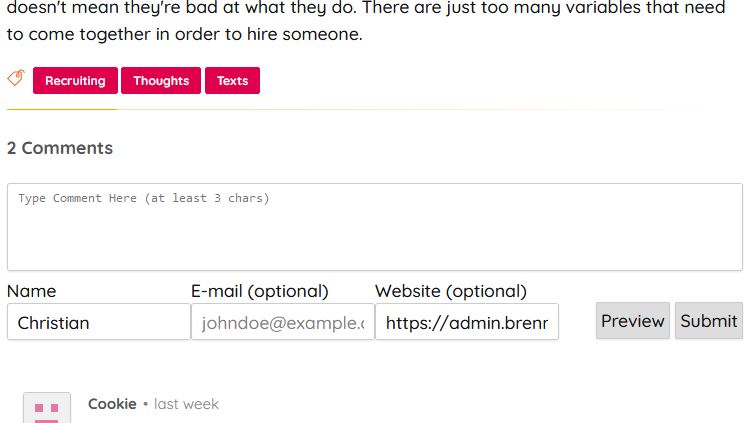
After a reload you should see the comment form below your article content, but above the article tags.

Like in this example screenshot:

Admin backend

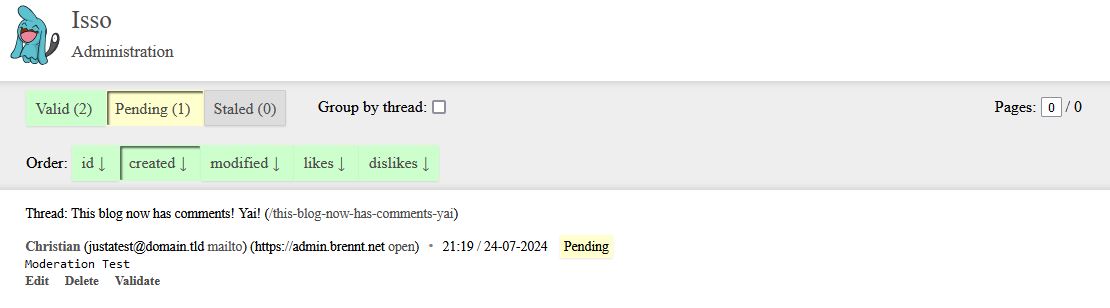
A picture says more than a dozen sentences, so here is a screenshot of the Admin backend with a comment awaiting moderation. Using my configuration you can access it via http://host.domain.tld/isso/admin/.

Screenshot from the Isso Admin backend

Changing the /admin URI for Isso

Issos admin backend is reachable via /admin per-default. If, for whatever reason, you can't set public-endpoint = https://host.domain.tld/prefix with a prefix of your choice, but have to use host.domain.tld, this can still be changed in the source code.

Note: The following line numbers are for version 0.13.0 and change can at anytime. Also I haven't tested this thoroughly, so go with this at your own risk.

Grep'ing for /admin we learn that this is defined in the site-packages/isso/views/comments.py (NOT site-packages/isso/db/comments.py) file.

# Finding the right comments.py
(isso) user@admin:/opt/isso$ find . -type f -wholename *views/comments.py
./lib/python3.9/site-packages/isso/views/comments.py

Now open ./lib/python3.9/site-packages/isso/views/comments.py with your texteditor of choice and navigate to line 113 and 1344.

Line 113:
Change: ('admin', ('GET', '/admin/'))
    To: ('admin', ('GET', '/isso-admin/'))
Line 1344:
Change: '/admin/',
    To: '/isso-admin/',

Of course you can change /isso-admin/ to anything you like. But keep in mind this will be overwritten once you update Isso.

Troubleshooting

AH01630: client denied by server configuration

[authz_core:error] [pid 1257781:tid 1257781] AH01630: client denied by server configuration: /opt/isso/isso.wsgi

This error was easy to fix. I simply forgot the needed Directory directive in my Apaches vHost configuration.

Adding the following block to the vHost fixed that:

# Isso comments directory
<Directory /opt/isso/>
        Options -Indexes +FollowSymLinks -MultiViews
        Require all granted
</Directory>

ModuleNotFoundError: No module named 'isso'

This one is easy to fix and was just an oversight on my end. I forgot to change the example path to the site-packages directory from my virtualenv. Hence the install isso package couldn't be located.

[wsgi:error] [pid 1258908:tid 1258908] mod_wsgi (pid=1258908): Failed to exec Python script file '/opt/isso/isso.wsgi'.
[wsgi:error] [pid 1258908:tid 1258908] mod_wsgi (pid=1258908): Exception occurred processing WSGI script '/opt/isso/isso.wsgi'.
[wsgi:error] [pid 1258908:tid 1258908] Traceback (most recent call last):
[wsgi:error] [pid 1258908:tid 1258908]   File "/opt/isso/isso.wsgi", line 3, in <module>
[wsgi:error] [pid 1258908:tid 1258908]     from isso import make_app
[wsgi:error] [pid 1258908:tid 1258908] ModuleNotFoundError: No module named 'isso'

I changed the following:

# Add the new site-packages directory.
site.addsitedir("/path/to/isso_virtualenv")

To the correct path:

# Add the new site-packages directory.
site.addsitedir("/opt/isso/lib/python3.9/site-packages")

Your path can of course be different. Just execute an find . -type d -name site-packages inside your virtualenv and you should get the correct path as result.

SyntaxError: unexpected EOF while parsing

On https://isso-comments.de/docs/reference/deployment/#mod-wsgi Isso lists some WSGI example config files to work with. However all but one have a crucial syntax error: A missing closing bracket at the end.

If you get an error like this:

[wsgi:error] [pid 1259079:tid 1259079] mod_wsgi (pid=1259079, process='', application='admin.brennt.net|/isso'): Failed to parse Python script file '/opt/isso/isso.wsgi'.
[wsgi:error] [pid 1259079:tid 1259079] mod_wsgi (pid=1259079): Exception occurred processing WSGI script '/opt/isso/isso.wsgi'.
[wsgi:error] [pid 1259079:tid 1259079]    File "/opt/isso/isso.wsgi", line 14
[wsgi:error] [pid 1259079:tid 1259079] 
[wsgi:error] [pid 1259079:tid 1259079]     ^
[wsgi:error] [pid 1259079:tid 1259079] SyntaxError: unexpected EOF while parsing

Be sure to check if every opening bracket has a closing one. Usually you just need to add one ) at the end of the last line and that's it.

SystemError: ffi_prep_closure(): bad user_data (it seems that the version of the libffi library seen at runtime is different from the 'ffi.h' file seen at compile-time)

This one baffled me at first and I had to search for an answer. Luckily StackOverflow came to the rescue: https://stackoverflow.com/a/70694565

The solution was rather easy. First install the libffi-dev package, than recompile the cffi with the command in the answer inside the virtualenv. After that the error was gone.

root@admin /opt/isso # apt-get install libffi-dev
Reading package lists... Done
Building dependency tree... Done
Reading state information... Done
The following NEW packages will be installed:
  libffi-dev
0 upgraded, 1 newly installed, 0 to remove and 0 not upgraded.
Need to get 56.5 kB of archives.
After this operation, 308 kB of additional disk space will be used.
Get:1 http://deb.debian.org/debian bullseye/main amd64 libffi-dev amd64 3.3-6 [56.5 kB]
Fetched 56.5 kB in 0s (2,086 kB/s)
Selecting previously unselected package libffi-dev:amd64.
(Reading database ... 57679 files and directories currently installed.)
Preparing to unpack .../libffi-dev_3.3-6_amd64.deb ...
Unpacking libffi-dev:amd64 (3.3-6) ...
Setting up libffi-dev:amd64 (3.3-6) ...
Processing triggers for man-db (2.9.4-2) ...

Then switch back to the non-root user for the virtualenv and recompile the package.

(isso) user@admin:/opt/isso$ pip install --force-reinstall --no-binary :all: cffi
Collecting cffi
  Using cached cffi-1.16.0.tar.gz (512 kB)
  Installing build dependencies ... done
  Getting requirements to build wheel ... done
    Preparing wheel metadata ... done
Collecting pycparser
  Using cached pycparser-2.22.tar.gz (172 kB)
Skipping wheel build for pycparser, due to binaries being disabled for it.
Building wheels for collected packages: cffi
Building wheel for cffi (PEP 517) ... done
  Created wheel for cffi: filename=cffi-1.16.0-cp39-cp39-linux_x86_64.whl size=379496 sha256=cd91c1e57d0f3b6e5d23393c0aa436da657cd738262ab29d13ab665b2ad2a66c
Stored in directory: /home/user/.cache/pip/wheels/49/dd/bc/ce13506ca37e8052ad8f14cdfc175db1b3943e5d7bce7718e3
Successfully built cffi
Installing collected packages: pycparser, cffi
  Attempting uninstall: pycparser
    Found existing installation: pycparser 2.22
    Uninstalling pycparser-2.22:
      Successfully uninstalled pycparser-2.22
    Running setup.py install for pycparser ... done
  Attempting uninstall: cffi
    Found existing installation: cffi 1.16.0
    Uninstalling cffi-1.16.0:
      Successfully uninstalled cffi-1.16.0
Successfully installed cffi-1.16.0 pycparser-2.22

TypeError: load() got an unexpected keyword argument 'multiprocessing'

On https://isso-comments.de/docs/reference/deployment/#mod-wsgi Isso lists some WSGI example config files to work with. Using them brought up this error message.

To my shame I couldn't fix this one. From my understanding the syntax, etc. was correct but I couldn't find any really helpful answer. Therefore I remove that from the provided WSGI files and the error vanished.

Note: The missing closing bracket at the end has already been added here.

import os
import site
import sys

# Remember original sys.path.
prev_sys_path = list(sys.path)

# Add the new site-packages directory.
site.addsitedir("/path/to/isso_virtualenv")

# Reorder sys.path so new directories at the front.
new_sys_path = []
for item in list(sys.path):
    if item not in prev_sys_path:
        new_sys_path.append(item)
        sys.path.remove(item)
sys.path[:0] = new_sys_path

from isso import make_app
from isso import dist, config

application = make_app(
config.load(
    config.default_file(),
    "/path/to/isso.cfg"))

Other articles

Alternatives

I also found Remark42 (Official Website, GitHub) and might try that at a later time. So if Isso isn't after your liking, maybe have a look at that one.

Comments

This blog now has comments! Yai!

Photo by Teddy Yang: https://www.pexels.com/photo/people-inside-stadium-2263410/

I used Isso (Official Website, GitHub) to integrate comments into this block. This was a feature which I missed dearly as I value the input from others, but wouldn't go all the way in using a Wordpress installation or similar blogging software.

Isso integrates nicely, just two small changes to my blogs templates and done. All comments are stored in a SQLite DB on this host. This means no data sharing with services like Discourse, Google or the like. Additionally this has the benefit that no registration is required. As I hate it when I have to create yet another account to just write one or two sentences of feedback. More often than not I refrained from commenting because of this.

Comments have to pass a moderation for spam reasons though.

Comments

Things to do when updating Bludit

Photo by Markus Spiske: https://www.pexels.com/photo/green-and-yellow-printed-textile-330771/

I finally got around to update to the recent version of Bludit. And as I made two changes to files which will be overwritten, I made myself a small documentation.

Changing the default link target

Post with code example, here: https://admin.brennt.net/changing-the-default-link-target-in-bludits-tinymce

  1. Open file bludit-folder/bl-plugins/tinymce/plugin.php file
  2. Search for tinymce.init
  3. Then we add the default_link_target: '_blank' parameter at the end of the list
  4. Don't forget to add a semicolon behind the formerly last parameter

Keep the syntax highlighting

This is outdated, since Bludit 3.18.4 I use a different solution: A better approach to enable line-numbers in Bludit code-blocks

Original post: https://admin.brennt.net/bludit-and-syntax-highlighting

  1. Open: bludit-folder/bl-plugins/tinymce/tinymce/plugins/codesample/plugin.min.js
  2. Search for <pre and in the class property add line-numbers. It should now look like this: t.insertContent('<pre id="__new" class="language-'+a+' line-numbers">'+r+"</pre>")
  3. A little after that pre you will also find t.dom.setAttrib(e,"class","language-"+a), add the line-numbers class in there too, it should look like this: t.dom.setAttrib(e,"class","line-numbers language-"+a)
  4. Edit a random blogpost with code in it to verify that newly rendered pages get the line-numbers and syntax highlighting.

Enhancing Cookie security

Mozillas Observatory states that the Bludit Session Cookie is missing the samesite attribute and the Cookie name isn't prefixed with __Secure- or __Host-. I opened an issue for this on GitHub (Bludit issue #1582 Enhance cookie security by setting samesite attribute and adding __Secure- prefix to sessionname) but until this is integrated we can fix it in the following way:

  1. Open bludit-folder/bl-kernel/helpers/session.class.php
  2. Comment out the line containing: private static $sessionName = 'BLUDIT-KEY';
  3. Copy & paste the following to change the Cookie name:
    • // Set the __Secure- prefix if site is called via HTTPS, preventing overwrites from insecure origins
      //   see: https://developer.mozilla.org/en-US/docs/Web/HTTP/Headers/Set-Cookie#cookie_prefixes
      //private static $sessionName = 'BLUDIT-KEY';
      private static $sessionName = '__Secure-BLUDIT-KEY';
  4. Search for the function session_set_cookie_params
  5. Add the following line to add the samesite attribute to the Cookie by adding the following line. Also add a comma at the end of the formerly last line.
    • 'samesite' => 'strict'
  6. it should looks like this:
    • session_set_cookie_params([
          'lifetime' => $cookieParams["lifetime"],
          'path' => $path,
          'domain' => $cookieParams["domain"],
          'secure' => $secure,
          'httponly' => true,
          'samesite' => 'strict'
      ]);

Check is the RSS-Feed works

  1. Access https://admin.brennt.net/rss.xml and verify there is content displayed.
    • If not: Check if the RSS-Plugin works and is activated

Apply / check CSS changes

I made some small changes to the Solen Theme CSS. These must be re-done when the theme is updated.

  1. Open bl-themes/solen-1.0/css/style.css
  2. Change link color:
    • Element: .plugin a, ul li a, .footer_entry a, .judul_artikel a, line 5
    • Change: color: #DE004A;
    • To: color: #F06525;
  3. Change link color when hovering:
    • Element: .plugin a:hover, ul li a:hover, .footer_entry a:hover, .judul_artikel a:hover, line 10
    • Change: color: #F06525;
    • To: color: #C68449;
  4. Fix position of the blockquote bar:
    • Element: blockquote::box-shadow, line 24
    • Change:  box-shadow: inset 5px 0 rgb(255, 165, 0);
    • To:  box-shadow: -5px 0px 0px 0px rgb(255, 165, 0);
  5. Format code in posts:
    • Add the following element after line 37:
    • /* My custom stuff */
      code {
          font-size: 87.5%;
          color: #e83e8c;
          word-wrap: break-word;
          font-family: 'Roboto Mono', monospace;
      }
  6. Same padding-bottom as padding-top for header:
    • Element .section_title, line 136
    • Change: padding-bottom: 0px;
    • To: padding-bottom: 0.6em;
  7. Disable the white blur for the introduction texts:
    • Element: .pratinjau_artikel p:after, line 277
    • Change background: linear-gradient(to right, transparent, #ffffff 80%);
    • To: background: 0% 0%;

Solen-Theme changes

  1. Make header smaller:
    • Open solen-1.2/php/mini-hero.php
    • Remove line 4: <h2 class="hero_welcome"><?php echo $L->get('welcome'); ?></h2>
Comments

Changing the default link target in Bludits TinyMCE

Photo by Monstera: https://www.pexels.com/photo/woman-holding-book-with-blank-pages-6373293/

When creating links in TinyMCE the link-plugin is configured to open links in the current window. As this is the default setting. However I don't like this and changed it every time. And when you change something every single time, you should just make it your new default.

Luckily TinyMCE has good documentation about every plugin. So we learn about the default_link_target parameter we can utilize to achieve exactly this.

We open the bludit-folder/bl-plugins/tinymce/plugin.php file and search for tinymce.init. Then we add the default_link_target: '_blank' parameter at the end of the list. Don't forget to add a semicolon behind the formerly last parameter.

In the end it looks like this:

        tinymce.init({
                selector: "#jseditor",
                auto_focus: "jseditor",
                element_format : "html",
                entity_encoding : "raw",
                skin: "oxide",
                schema: "html5",
                statusbar: false,
                menubar:false,
                branding: false,
                browser_spellcheck: true,
                pagebreak_separator: PAGE_BREAK,
                paste_as_text: true,
                remove_script_host: false,
                convert_urls: true,
                relative_urls: false,
                valid_elements: "*[*]",
                cache_suffix: "?version=$version",
                $document_base_url
                plugins: ["$plugins"],
                toolbar1: "$toolbar1",
                toolbar2: "$toolbar2",
                language: "$lang",
                content_css: "$content_css",
                codesample_languages: [$codesampleConfig],
                default_link_target: '_blank'
        });

And now generated links will per-default open in a new window.

Comments

Bludit and syntax highlighting

Photo by Pixabay: https://www.pexels.com/photo/computer-c-code-276452/

Bludit offers syntax highlighting via TinyMCE and it's codesample plugin, which you have to enable in the TinyMCE plugin settings first. But it offers only limited support. No Bash, no Puppet, no Perl and so on. Also I wanted line numbering when in code blocks for easier orientation. This is also not included.

The Prism.js library however offers support for many more languages and also some nice Plugins. For example for line-numbering.

To make everything work, the following tasks are necessary:

  1. Download & install the Bludit-Prism Plugin from here: https://plugins.bludit.com/plugin/prism
  2. Replace prism.js and prism.css files included in this Plugin with newer ones from https://prismjs.com/
    • As the one included in the Bludit Prism-Plugin only has support for: HTML/XML, JavaScript, CSS, PHP, Ruby, Python, Java, C, C#, C++
  3. Add our new languages to the codesamples config in the TinyMCE plugin config. This will add them in the dropdown-menu when inserting a code-sample block
  4. Edit the plugin.min.js file from the TinyMCE codesample plugin to automatically included the line-numbers plugin into the HTML pre-element.

For a general overview, and a little bit of background why the Prism plugin was created, see this link: https://forum.bludit.org/viewtopic.php?t=1818

As I'm somewhat new to Bludit I can't assess if this is the best approach. But for me it works. ;-)

EDIT: The code changes in point 7 are not needed anymore if you follow my newer solution described here: A better approach to enable line-numbers in Bludit code-blocks

  1. Download & install the Bludit-Prism Plugin from here: https://plugins.bludit.com/plugin/prism
    • Then activate it on the Bludit Plugins page
  2. Download prism.js and prism.css from https://prismjs.com/
    • Include all languages and plugins you need
    • Note: You need to use the JS and CSS-file from the same generation! You can't mix features or versions.
  3. Go to: bludit-folder/bl-plugins/prism and make a backup copy of the original files
    • mv js/prism.js js/prism.js.backup
      mv css/prism.css css/prism.css.backup
      
  4. Download new prism.js and prism.css and put into the correct folders
  5. Go to: Plugins -> TinyMCE -> Codesample languages and add your new languages, in my case:
    • Bash sh|RegEx regex|Puppet puppet|Perl perl|Python python|HTML/XML markup|JavaScript javascript|CSS css|PHP php|Ruby ruby
    • Unrelated side info: This will be written in the file bludit-folder/bl-content/databases/plugins/tinymce/db.php. I was just curious how/where this change is persisted.
  6. Now you will have syntax highlighting. But only in the generated HTML files, not in the TinyMCE code-blocks!
  7. To automatically include the line-numbers plugin from Prism.js we need to include the "line-numbers" class into the pre-element. This is done in the following way:
    • Open: bludit-folder/bl-plugins/tinymce/tinymce/plugins/codesample/plugin.min.js
    • Search for <pre and in the class property add line-numbers. It should now look like this: t.insertContent('<pre id="__new" class="language-'+a+' line-numbers">'+r+"</pre>")
    • A little after that pre you will also find t.dom.setAttrib(e,"class","language-"+a), add the line-numbers class in there too, it should look like this: t.dom.setAttrib(e,"class","line-numbers language-"+a)
    • Again, thanks to this comment on GitHub: https://github.com/tinymce/tinymce/issues/2771#issuecomment-232910444
  8. Keep in mind: As Bludit is a static file generator, your previously generated pages won't get this automatically. Here you will have to edit the pre-element manually.

If you are interested in some examples, have a look at this page: https://admin.brennt.net/syntax-highlighting-test with line-numbering and without, etc.

Comments

Admin Bar plugin

Photo by Steve Johnson from Pexels: https://www.pexels.com/photo/four-white-travel-adapters-1694830/

If you run Bludit you might want to give the Admin Bar Plugin a try. It adds a admin bar on top or bottom (configureable) which gives you this neat & handy "Edit post" button when you are logged in. Also quicklinks to all relevant sections (Content, Categories, General, Settings, etc.) and a "New post" button.

Handy.

My recommendation:

  • Show site name: Enabled
    • Name of your site with link to it. Useful if you need to get to the front page quickly
  • Show extended menu: Enabled (Default)
  • Show site settings: Disabled (Default)
  • Position of admin bar: Bottom (Default)
    • Else it will overlap with your static sites and search bar
Comments