Feuerfest

Just the private blog of a Linux sysadmin

yt-dlp error "No video formats found" and how I learned about DASH and that my yt-dlp filter could be improved

I participated in an only workshop at the weekend and the organisers kindly provided the recording as an unlisted YouTube video. As I wanted to watch the video again at a later time I used my MeTube installation to download the YouTube video. Or rather: Tried to.

As the download would fail. MeTube would say no available formats could be found. The video however played nicely on YouTube!?

The setup

I use a self-hosted web frontend for yt-dlp in Docker called MeTube, configured through the YTDL_OPTIONS environment variable. My config looked like this:

YTDL_OPTIONS={ "cookiefile":"/downloads/cookies/cookies.txt", "format-sort": "res:1080", "format": "best[language^=de]/best[language^=en]/b", "merge_output_format": "mp4" }

The idea behind this filter was:

  1. Limit video to 1080p in quality (not higher)
  2. Use the best available version with German audio
  3. Else use the best available version with English audio
  4. Use whatever is available as fallback

Step 1: Debugging

Naturally my first move was to check what kind of formats are offered for this video in order to verify the error message.

user@host:~$ yt-dlp -F "https://www.youtube.com/watch?v=VIDEO_ID"

For clarity I removed some lines and columns to make it more easier to read:

ID  EXT   RESOLUTION │ VCODEC          ACODEC      MORE INFO
─────────────────────────────────────────────────────────────────────
139 m4a   audio only │ audio only      mp4a.40.5   low, m4a_dash
140 m4a   audio only │ audio only      mp4a.40.2   medium, m4a_dash
251 webm  audio only │ audio only      opus        medium, webm_dash
134 mp4   640x360    │ avc1.4D401E     video only  360p, mp4_dash
136 mp4   1280x720   │ avc1.64001F     video only  720p, mp4_dash
137 mp4   1920x1080  │ avc1.640028     video only  1080p, mp4_dash
398 mp4   1280x720   │ av01.0.05M.08   video only  720p, mp4_dash
399 mp4   1920x1080  │ av01.0.08M.08   video only  1080p, mp4_dash

Notice something? Every single format is either audio only or video only. There is not one single format which contains both. Remember that for later.

Step 2: Why my filter found nothing

In yt-dlp's format selection best (or b) means: the best single file which contains video AND audio. And there are none. So all three alternatives of my filter (best[language^=de], best[language^=en] and b) ran into the void. Hence the error: "No video formats found!". The formats exist, my filter just didn't select any of them.

Nowadays YouTube serves high-quality video and audio as separate streams (DASH, see my separate article). yt-dlp downloads both and merges them with ffmpeg (provided it is installed and yt-dlp can find it) afterwards. For this you need to select video and audio separately and join them with a +:

bv* = best video (the * also allows formats which already have audio)
ba = best audio
bv*+ba = download both and merge them

Step 3: The corrected filter?

"format": "bv*+ba[language^=de]/bv*+ba[language^=en]/bv*+ba/b"

Read from left to right: Best video plus German audio. If there is no German audio then best video plus English audio. If that doesn't work either, best video plus whatever audio there is. And only if everything fails, the old b as a last resort.

I tested this on the command line first and it worked.

However.. It failed for another video. The video had English and German audio, according to the filter I should have gotten the video with the German audio track, but I didn't.

And here is where DASH becomes relevant: ba works for non-combined formats ONLY, meaning: ba only matches results with "audio only" under RESOLUTION (when using yt-dlp -F) Which is the case when DASH is used. On older videos however this might not be the case and you have only combined formats available. ba simply ignores these and hence my /b fallback matched and gave me the default audio track.

For combined formats we have to use best or b.

Step 4: The new filter 

Long story short, I ended up with the following filter which takes care of both, combined and non-combined, formats along with audio-only content:

'YTDL_OPTIONS={ "format-sort": "res:1080", "format": "bv*+ba[language^=de]/bv*+ba[language^=en]/b[language^=de]/b[language^=en]/bv*+ba/b/ba[language^=de]/ba[language^=en]/ba", "merge_output_format":"mp4" }'

  • format: alternatives separated by /, tried left to right, first match wins
    1. bv*+ba[language^=de]: best "video only" + best German "audio only"
    2. bv*+ba[language^=en]: best "video only" + best English "audio only"
    3. b[language^=de]: best combined format with German audio
    4. b[language^=en]: best combined format with English audio
    5. bv*+ba: best "video only" + best "audio only", any language
    6. b: best combined video+audio format
    7. ba[language^=de]: best German audio-only (for content without video)
    8. ba[language^=en]: best English audio-only (for content without video)
    9. ba: best audio-only, any language

This should be sufficient for the future (I hope! 😂) as I also took care to handle audio-only content.

Comments

What is DASH (Dynamic Adaptive Streaming over HTTP) and why did it broke my yt-dlp filter?

When you run yt-dlp -F on a YouTube video you will see lots of entries ending in mp4_dash, webm_dash or m4a_dash. I thought at first that this is a new format, so I started searching. As my current filter would complain: "No video formats found!"

The short version

DASH stands for Dynamic Adaptive Streaming over HTTP, also known as MPEG-DASH. It is an international standard (first described in ISO/IEC 23009-1) for streaming video and audio over plain HTTP. The same protocol your browser uses to load any webpage.

The core idea: Don't send one big file. Cut the media into many small segments, offer them in several qualities, and let the player decide which quality it wants to fetch next. And reading this, I finally understood a bit more how some things related to streaming work (yeah, all that audio/video stuff is not my bright side).

The problem DASH solves

Before adaptive streaming there were basically two options to watch a video on the web:

  1. Download the whole file (progressive download)
    • Simple, but you can't react if your connection gets slower. The video just stutters and buffers.
  2. Special streaming servers and protocols like RTMP (remember Flash?)
    • They worked, but needed dedicated server software (remember RealServer or RealPlayer?), were a pain with firewalls and didn't play well with caches and CDNs from what I read.

DASH takes a different approach: A video is just a bunch of static files on a normal web server. No special server logic required. Any HTTP server or CDN can deliver it. That's a big reason why it became so popular.

How it works

1. Encoding: many qualities, small segments

The provider encodes the video several times, in different resolutions and bitrates (144p, 360p, 720p, 1080p, ...). Each of these versions is called a Representation. Every representation is then cut into segments, usually a few seconds long.

Video and audio are separate representations. (Keep this in mind if you want to setup yt-dlp!) Audio can also exist in several bitrates, codecs and languages.

2. The XML-manifest tying everthing together

A small XML file, the Media Presentation Description (MPD), describes what is available. Which representations exist, which codecs, which bitrates and where to find the segments.

A heavily simplified, non-working example - as there are many attributes, etc. missing, is below:
Note: I use YouTube IDs here to make it easier to understand how yt-dlp, DASH/MPD and YouTube play together:

<MPD type="static" mediaPresentationDuration="PT10M">
  <Period>
    <AdaptationSet mimeType="video/mp4">
      <Representation id="137" codecs="avc1.640028" width="1920" height="1080" bandwidth="3500000"/>
      <Representation id="136" codecs="avc1.64001F" width="1280" height="720"  bandwidth="2000000"/>
      <Representation id="134" codecs="avc1.4D401E" width="640"  height="360"  bandwidth="700000"/>
    </AdaptationSet>
    <AdaptationSet mimeType="audio/mp4" lang="de">
      <Representation id="140" codecs="mp4a.40.2" bandwidth="129000"/>
    </AdaptationSet>
  </Period>
</MPD>

The AdaptationSet groups interchangeable versions of the same thing (e.g. "the video in different resolutions" or "the German audio track in different bitrates"). The player picks one representation out of each set.

Real world examples can be found here, but I can't say if they are up-to-date or working:

3. The player does the thinking

The player downloads the MPD and then:

  1. Starts with a low or medium quality, so playback begins quickly.
  2. Measures how fast the segments arrive (and how full its buffer is).
  3. Switches to a higher or lower representation for the next segment, depending on the result.

That is the "adaptive" in the name. It's also why a YouTube video gets blurry for a moment when your WLAN is acting up, instead of stopping to buffer. The server isn't even involved in this decision. It just hands out files.

This provided a nice "Ahhh!"-moment for me, as now I understood the technical details of how streaming services achieve this.

How it plays out is basically this:

Server (plain HTTP):        Player:
video_1080p/seg001.m4s ---> fast connection -> fetch 1080p
video_1080p/seg002.m4s ---> fetch segment 2
video_360p/seg003.m4s  ---> connection drops -> switch to 360p
video_720p/seg004.m4s  ---> recovered -> raise to 720p
audio_de/seg001.m4s    ---> audio is fetched independently

Why video and audio are separate

This is the part that matters for yt-dlp. Because video and audio are independent representations, a provider doesn't need to store every combination of resolution and language as an own file. Imagine a video with 8 resolutions, 3 codecs and 5 languages. Without separation that would be 120 files (8*3*5). With DASH it is 24 video representations (8*3) plus 5 audio ones. And the player combines them on the fly.

The downside for us as downloaders: There is often no single file containing both video and audio in high quality. That's why a plain best format selector in yt-dlp can come up empty on YouTube, as I happened to experience today. You have to select video and audio separately and merge them (which needs ffmpeg), but luckily yt-dlp does this for us too if ffmpeg (see: https://github.com/yt-dlp/yt-dlp#strongly-recommended) can be found in your systems environment variables (like PATH).

To download a video with that filter, use:

user@host:~$ yt-dlp -f "bv*+ba" "URL"

bv* is the best video, ba the best audio and the + tells yt-dlp to download both and merge them.

DASH in the yt-dlp format list

In the yt-dlp -F output you recognise DASH streams by the _dash suffix in the MORE INFO column:
Note: For clarity I removed several columns (like FPS, CH, FILESIZE, etc.) in this output.

user@host:~$ yt-dlp -F https://www.youtube.com/watch?v=ID
[youtube] Extracting URL: https://www.youtube.com/watch?v=ID
[youtube] ID: Downloading webpage
[youtube] ID: Downloading visionos player API JSON
[youtube] ID: Downloading m3u8 information
[info] Available formats for ID:
ID  EXT   RESOLUTION │ VCODEC        ACODED      MORE INFO
─────────────────────────────────────────────────────────────────────
137 mp4   1920x1080  │ avc1.640028   video only  1080p, mp4_dash
140 m4a   audio only │ audio only    mp4a.40.2   medium, m4a_dash
251 webm  audio only │ audio only    opus        medium, webm_dash

The container (mp4, webm, m4a) is independent of DASH. DASH only describes how the media is delivered, not what is inside. It is codec-agnostic: H.264, VP9, AV1, AAC, Opus, all of that works.

And now you know why your player never asks you which of the 20 formats it should play and why the video quality automatically fixes it itself after network/bandwidth issues. 😅

Comments

MeTube: A selfhosted WebUI for yt-dlp

Most people should have heard of youtube-dl and the legal battles around it. As the content industry only saw it as a tool for piracy. And yes, while many may use it solely for that there is also the big group of people who want to download single TV news articles (videos) or documentaries produced by public-service broadcasting companies such as ARTE, ARD, ZDF - to name a few German ones. youtube-dl was sued into oblivion, but as it was OpenSource other forks were created with yt-dlp being the currently active one.

yt-dlp however is not just the only program offering this kind of functionality. As such there is the program MediathekView which gathers all senders program information and allows for the easy download of all content. Why MediathekView isn't sued? It only allows the download of content from the online Mediathek of public broadcasting companies, such as: ARD, ZDF, Arte, 3Sat, SWR, BR, MDR, NDR, WDR, HR, RBB, ORF and SRF. Which are all public broadcasting TV senders from Germany, Austria and Switzerland. Hence no problems with 3rd party rights do exist.

But... MediathekView is a local application and I like to have a simple web-frontend useable from any device. Introducing MeTube it's a web-frontend build around yt-dlp and provided as a Docker container. The WebUI itself is minimalistic but does its job.
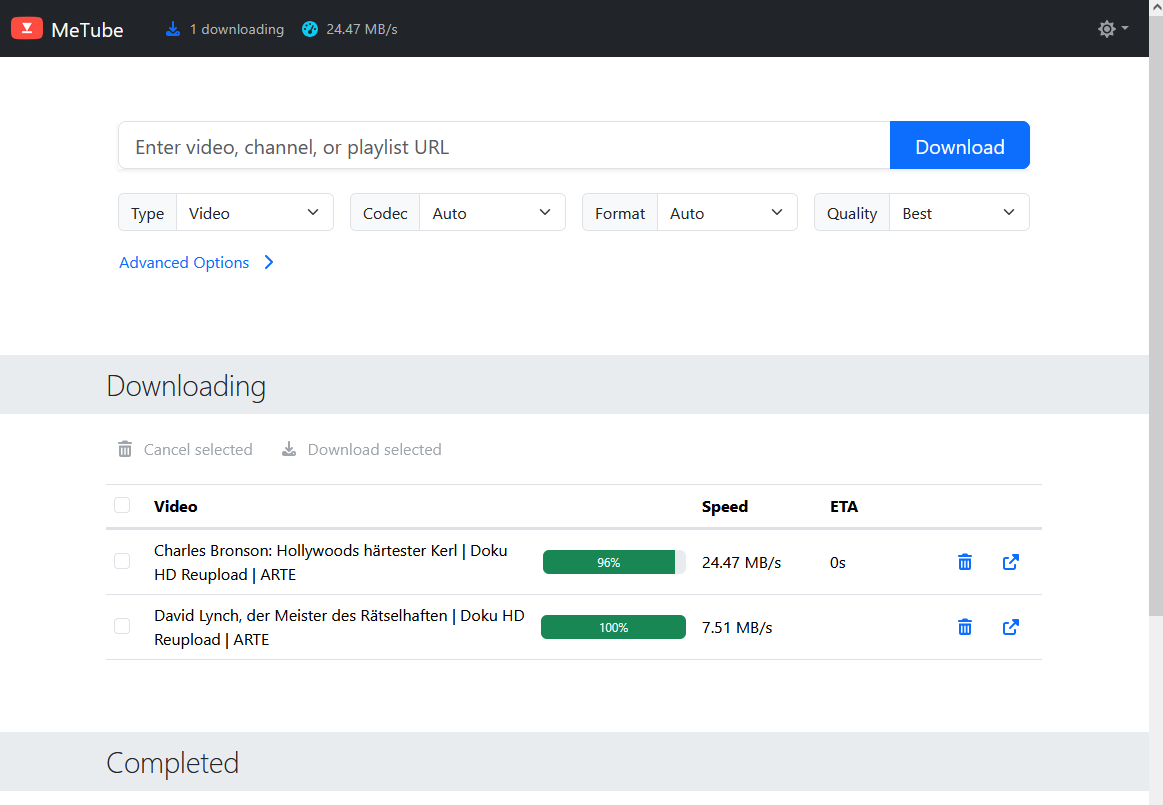
Screenshot from the Metube WebUI(Click to enlarge)

In my environment MeTube is configured to save videos on a share on my NAS. Storing the videos in the correct folder automatically.

Mounting the CIFS-Share is done via the following line in /etc/fstab. As the directory is on a remote server it can become unavailable when the host is down. To circumvent this, we use the following mount parameters. Additionally we use a bind-mount propagation in the Dockerfile - actually the first time I ever did this. 😄

  • nofail: do not report errors for this device if it does not exist (see: man fstab)
  • _netdev: Using this option overrides this detection and specifies that the mount requires network (see: man systemd.mount)
  • x-systemd.automount: An automount unit will be created for the file system. (see: man systemd.automount and man systemd.mount)
  • x-systemd.mount-timeout=30: Configure how long systemd should wait for the mount command to finish before giving up on an entry from /etc/fstab (see: man systemd.mount)
root@portainer:~# cat /etc/fstab
# /etc/fstab: static file system information.
[...]
# Metube Mount
//ip.ip.ip.ip/video/yt-dlp /mnt/yt-dlp cifs rw,vers=3.0,credentials=/root/.fileserver_smbcredentials,dir_mode=0775,file_mode=0775,uid=1002,gid=1002,nofail,_netdev,x-systemd.automount,x-systemd.mount-timeout=30s

To activate the mount we use:

root@host:~# systemctl daemon-reload
root@host:~# mount -a
# This shows our mount as automount
root@host:~# systemctl list-dependencies remote-fs.target
remote-fs.target
○ └─mnt-yt\x2ddlp.automount

# If no automount is used, the entry is shown the following way:
root@host:~# systemctl list-dependencies remote-fs.target
remote-fs.target
● └─mnt-yt\x2ddlp.mount

If the mount isn't shown here there is no dependency to the remote-fs.target in systemd. Check if _netdev has been added. On most distributions _netdev isn't explicitly needed as network filesystems are discovered via the filesystem type - CIFS in our case.

Then we use that local mount for the /downloads folder of the Docker container. After the first start I learned I additionally need to explicitly store the TEMP_DIR and STATE_DIR on local volumes on the Docker container host itself. After that I fixed the healthcheck as it is hardcoded for HTTP.

services:
  metube:
    image: ghcr.io/alexta69/metube
    container_name: metube
    restart: unless-stopped
    ports:
      - "8081:8081"
    volumes:
      # On CIFS-Share, mounted via /etc/fstab
      # see https://docs.docker.com/engine/storage/bind-mounts/#configure-bind-propagation
      # on how bind propagation works
      - /mnt/yt-dlp:/downloads:slave
      # HTTPS
      - /opt/docker/certs/portainer.lan.crt:/ssl/crt.pem
      - /opt/docker/certs/portainer.lan.key:/ssl/key.pem
      # Local volumes to make CIFS-Share work
      - /opt/docker/metube/temp:/temporary
      - /opt/docker/metube/state:/state
    environment:
      - PUID=1002
      - PGID=1002
      # HTTPS
      - HTTPS=true
      - CERTFILE=/ssl/crt.pem
      - KEYFILE=/ssl/key.pem
      # Needed as our /downloads folder is located on a CIFS-Share
      - TEMP_DIR=/temporary
      - STATE_DIR=/state
      # Downloaded files are deleted on the server, when they are trashed from the "Completed" section of the UI
      #  - Will delete files from /download! This is not to clear some kind of cache
      #- DELETE_FILE_ON_TRASHCAN=true
      #
      # yt-dlp options
      # Prefer 1080p & audio in german language, if no german is available use english, else use default
      # Note 1: There are combined formats (audio+video in one file) and non-combined (listed as: "audio only" or "video only")
      # Note 2: ba[language^=de] is for "audio only" file, likewise b[language^=de] is for combined files only
      #   ^=de means we also take de-DE or de-AT, similiar for ^=en meaning en-UK, en-US, etc.
      # Note 3: To make our filter work with both, we have to use /b as fallback and /ba for audio-only content without video
      # Note 4: yt-dlp can't reliably identify the automatically generated audiotracks as these are not clearly listed as such in the metadata
      # Note 5: format-sort res:1080 means: Prefer 1080p, if not available download the next best smaller format. If no smaller format is available, download the next (smallest) higher format
      #
      # format: alternatives separated by /, tried left to right, first match wins
      #   bv*+ba[language^=de]: best video + best German audio
      #   bv*+ba[language^=en]: best video + best English audio
      #   b[language^=de]: best combined format with German audio
      #   b[language^=en]: best combined format with English audio
      #   bv*+ba: best video + best audio, any language
      #   b: best combined video+audio format
      #   ba[language^=de]: best German audio-only (for content without video)
      #   ba[language^=en]: best English audio-only (for content without video)
      #   ba: best audio-only, any language
      - 'YTDL_OPTIONS={ "format-sort": "res:1080", "format": "bv*+ba[language^=de]/bv*+ba[language^=en]/b[language^=de]/b[language^=en]/bv*+ba/b/ba[language^=de]/ba[language^=en]/ba", "merge_output_format":"mp4" }'
    # Internal container healthcheck is hardcoded for HTTP
    healthcheck:
        test: ["CMD-SHELL", "curl -fsS --insecure -m 2 https://localhost:8081/ || exit 1"]
        interval: 60s
        timeout: 10s
        retries: 3
        start_period: 10s

The only feature I currently miss is that I can't select the audio track which I do want to download along with the video. However having such options would only solve one part of the problem. As the other part would be that each site would need to clearly state which audio track contains which language. And that isn't even reliably done on YouTube.

Hence I help myself with passing some options to yt-dlp via YTDL_OPTIONS. My config 'YTDL_OPTIONS={ "format-sort": "res:1080", "format": "best[language^=de]/best[language^=en]/b", "merge_output_format": "mp4" }' means: Sort the videos based on the resolution, set 1080p as the highest (best). Videos in higher resolution won't be considered for download. Based on that we download the best video/audio available in German and if nothing is available in German we use English. If that isn't available too, we just use the default.

As stated in the comments of the Dockerfile the problem is that not every language has an audio only track. Only on those a bestaudio filter like ba[language^=en] would work. I encountered too many videos where the language was part of the video track, therefore I switched to just use best[language^=...]. This works more reliable from my experience. And yes, these settings overwrite everything you select in the web-frontend.

Nonetheless for the edge cases being able to define settings for a single download would be nice.

Turns out I got things wrong, October 2026 correction:

The filter I used didn't exactly do what I thought it did and happened to have problems with DASH.

This is my old filter I describe in this article:
'YTDL_OPTIONS={ "format-sort": "res:1080", "format": "best[language^=de]/best[language^=en]/b", "merge_output_format": "mp4" }'

Turns out best and b or for single files combining audio AND video. However, with standards like DASH these are separate files and hence MeTube/yt-dlp won't find anything to download.

Additionally it didn't limit downloads to a maximum quality of 1080p, instead it preferred it. If no 1080p format is available, it takes the best quality below 1080p (for example: 720p) and if no quality equal to or below 1080p is available it will take the next (smallest) format above the specified limit (like: 2k if only 2k and 4k are available).

However, I decided this is fine for me, as this is generally also what I want and it makes the whole filter a bit more robust.

So my new filter is:

'YTDL_OPTIONS={ "format-sort": "res:1080", "format": "bv*+ba[language^=de]/bv*+ba[language^=en]/b[language^=de]/b[language^=en]/bv*+ba/b/ba[language^=de]/ba[language^=en]/ba", "merge_output_format":"mp4" }'

It works the following (also already included in the Docker compose file above):

  • format: alternatives separated by /, tried left to right, first match wins
    1. bv*+ba[language^=de]: best video + best German audio
    2. bv*+ba[language^=en]: best video + best English audio
    3. b[language^=de]: best combined format with German audio
    4. b[language^=en]: best combined format with English audio
    5. bv*+ba: best video + best audio, any language
    6. b: best combined video+audio format
    7. ba[language^=de]: best German audio-only (for content without video)
    8. ba[language^=en]: best English audio-only (for content without video)
    9. ba: best audio-only, any language

Last tips

If you encounter any problem when downloading a video with yt-dlp make sure you have a JavaScript runtime installed (MeTube uses deno). You either need to specify the path to it in the config file or on the command line via: yt-dlp --js-runtimes deno:/path/to/deno -F URL as only then a -F will show you all available formats. Else some can be missing.

Secondly, use -s to simulate a run when testing your config. Like for my config above: yt-dlp --js-runtimes deno:/path/to/deno -s -S res:1080 -f "best[language^=de]/best[language^=en]/b" URL

Also pay attention to the log line that stated which video and audio track are being downloaded: [info] YouTube-VideoID: Downloading 1 format(s): 96-5. This number corresponds directly to the values you can retrieve with -F. Generally when your filter isn't working it mostly downloads the default video and audio track.

Generally I can recommend reading the yt-dlp readme on Format Selection.

Comments

Goodbye, Bludit? Hello, Kirby?

For a few months now, I've been regularly coming back to this point where I ask myself whether I want to continue using Bludit. The latest version dates from August 2024, and there are issues with IT security-related bugs open and unresolved on GitHub.

Sure, Bludit is open source. Anyone can fork it. But Jürgen Greuter (alias: Tante) wrote back in 2013: "Host your own is cynical". In this text, he discusses why not everyone can set up and operate software "just like that" when a service is discontinued or its business model changes fundamentally.

And in this sense, I would like to note: "Fork your own is cynical"

I want to blog. I want to write down and publish my thoughts. I don't want to programme PHP or deal with problems in dozens of different browser versions. In some cases, I would also have to acquire a lot of knowledge (again) first. And the time spent for maintaining the fork? No, thank you.

I just want to be a user. Period.

And well, as can be read in the Bludit forum, the only developer (Diego) is not working on Bludit until further notice. There are apparently only minimal adjustments. Too bad. Also because security-related bugs are obviously not included.

But just as I simply want to be a user, I can understand that Diego also has a life and needs to pay his bills.

So I did a little research and came across the blogging software Kirby. Also a FlatFile CMS. You do have to buy a licence for Kirby, but at 99€ for three years, it's more than fair. And the source code is available on GitHub. So if I want to, I can dig through the code myself and see what's going on or whether there's already an issue for my problem.

What's more, the software has been on the market for over 10 years and is used by several well-known magazines and projects (e.g. OBS and Katapult Magazine). That also speaks for its reliability.

Well, I think I'll spend a weekend or so with the trial version and see how Kirby feels. The demo was nice, anyway, and didn't leave me wanting anything.

Comments

Blocking Googles AI answers in search results with uBlock Origin

If you have uBlock Origin installed as an extension in your browser there is a way to hide/block Googles AI answers.

  1. Click the uBlock Origin icon
  2. Click the button with the 3 wheels in the lower right
  3. Go to "My filters"
  4. Copy and paste the following into the field below: google.com##.hdzaWe
  5. Make sure the checkbox next to "Activate own filters" is set
  6. Hit "Apply changes" on top

Of course this only works until Google changes the name of the element, but if that happens there is usually a thread in https://www.reddit.com/r/uBlockOrigin/ with the new filter.

Or alternatively just put a swear word somewhere into your Google search query. Then the AI is also absent. 😂

Instead of: programname error-message
Google for: programname fucking error-message

😆

The udm=14 parameter

And the "cheat code" for AI free search with Google also still exists. Just add the udm=14 parameter.

https://tedium.co/2024/05/17/google-web-search-make-default/ has all the details and https://tenbluelinks.org shows you how to achieve that for various browsers.

Enjoy!

Comments

No, you don't get Microsoft Office for free via the Office Customization Tool (OCT) and Generic Volume License Keys (GVLKs)

Photo by RDNE Stock project: https://www.pexels.com/photo/close-up-shot-of-a-person-holding-a-contract-7841486/

There are a bunch of websites and Youtube videos trying to tell you that the locally installable Microsoft Office versions can be downloaded, legally, free of charge, directly from Microsoft. This is, of course, nonsense.

The bait

All videos I watched and articles I read told their audience to visit https://config.office.com/deploymentsettings. Which is the official site from Microsoft for the so-called Office Customization Tool (OCT). The OCT is meant for sysadmin administrators to generate a configuration file that defines which office version (Office LTSC Professional Plus 2024, Microsoft 354 Apps for Enterprise, etc.) along with which office components (Word, Excel, PowerPoint, Outlook, etc.) are going to be installed.

It is a tool used to ensure installer packages for Microsoft Office are configured the same way. Helping IT-Administrators to automate and standardize office installations on all of the companies' various systems (notebook, workstations, etc.).

The end result in using the OCT is a configuration file. Not an actual installer. You won't get a .msi or .exe file. You've just created a configuration file telling the office installer which components to install & how to configure them.

However - and this is the main reason this scam works - a license key is pre-filled. And this is almost always highlighted prominently in the videos & articles. Like this is some sort of proof that "Microsoft is giving away Office for free" or "This is legitimate". That's a lie. Straight out. I'll elaborate on that in the next paragraph.

The next step is that you download the official Office Deployment Tool (ODT) from Microsoft. Then the setup routine from the ODT is called and the configuration file you created with the OCT is supplied.

And yes, of course you will end up with an installation of your chosen Microsoft Office version. Alas, this version will never be useful and only work for 30 days and you won't be able to activate your installation. Why? Read the next paragraph.

The catch

What all of them don't seem to grasp - or intentionally misrepresent - is that they are using a Microsoft Office version with a pre-filled Generic Volume License Key (GVLK). This key still must be activated via a so-called Key Management Service (KMS). The KMS is NOT your Microsoft activation service used to activate your windows installation. It's a separate software component running in the Active Directory Domain in corporate networks. And guess what? You need to buy license keys and add them to the KMS. Only then your copy will be activated.

The thought "Well I got a license key, so it's working." is outdated. That was maybe the case with software in the early 2000s. Nowadays there are several other methods to validate if a copy is genuine or not.

After all.. If the license keys are so precious - the most valuable part. Why are they then pre-filled and non-changeable in the Office Deployment Tool from Microsoft? Why are they listed in a separate article?

That's why all videos are non-surprisingly tight-lipped on the whole "How to activate the Office installation?" part. Usually they just show the successful installation and open a few Word documents to proof it's working. Well yes, it is - for at least 30 days. But after that you're starting at zero again.

And.. I have no idea if using that Office installation will have consequences for your Microsoft account..

Side-note: Generic Volume License Keys being sold as used license keys

At least here in Germany it is legal to sell used license keys. In terms of Generic Volume License Keys (GVLKs) this adds another possibility for fraud.

Many shops which sell used Microsoft Office license keys will offer you retail keys in their shop. Think of retail keys as the stickers on the DVD Box of the software you just bought in your store of choice. Here almost always the key is unique and identifies exactly one copy of Microsoft Office. And the shop will gladly take your money when you buy a retail key from them. Only for you to receive a mail shortly afterwards which states that, sadly, retail keys are not in stock. But hey! They offer to upgrade you to a volume license key. Maybe even together with an upgrade to a higher Office version. As in: You bought a retail key for Microsoft Office 2024 Home and they offer you to upgrade you to Microsoft Office 2024 Professional Plus.

See where this is going?

At this point you should deny that upgrade and demand your money back. As it's quite likely that you will receive a Generic Volume License Key. Of course the shop will state that "Activation cannot be guaranteed" after you complain with your issues, etc.

That's the reason why you should read the Terms & Conditions carefully prior to buying used software license keys..

Why not just use OpenSource software?

If you don't want to pay for your office software suite, why not just use LibreOffice? LibreOffice is OpenSource and free-of-charge. It can handle documents created with Microsoft Office as well. So why all the hassle?

If you've never heard of it before, feel free to read the Wikipedia article about it: https://en.wikipedia.org/wiki/LibreOffice

Comments